System check · Guide
Guide: check your computer
The web check tells you before you buy whether your Mac or Windows PC suits Go Live Plus; after you subscribe, the System check in the app confirms it. And what to do when you see ⚠ or ✗.
1. Two ways, and when to use which
| Way A — web check | Way B — in the app | |
|---|---|---|
| Where | The /semak page in your browser | The Go Live Plus app on your computer |
| Install | Nothing | The app (about 1 GB) |
| Time | About 30 seconds | 10–15 minutes including install |
| Accuracy | An estimate — the browser cannot see everything | Final — real lipsync runs |
| When | Before buying — this is the pre-purchase check | After subscribing: before your first live, and when you change computer |
Way A is the check before you buy — there is no free account for trying the app. After you subscribe, way B confirms it before your first live.
2. Way A — the web check
- Open v3.aseacast.com/semak on the computer you want to go live from — not a phone. Chrome or Edge gives the fullest result; Safari and Firefox hide some details.
- Wait about 30 seconds. The page reads the chip, GPU, RAM and processor, then tests upload speed and ping.
- Pick your computer's real RAM in the Memory (RAM) row — browsers cannot see past 8 GB. The result updates at once.
- Read the result at the top and each ✓/⚠/✗ row below it.
- Press Copy result if you want to ask us on WhatsApp.
3. Reading the result
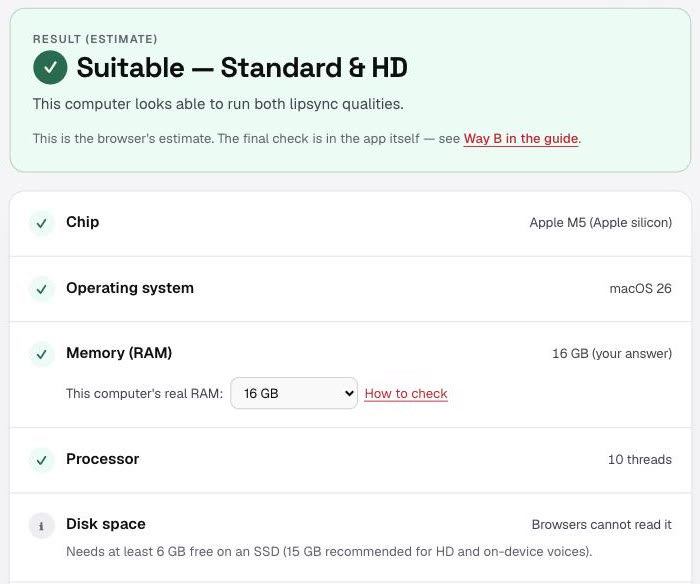
Suitable — Standard & HD
The computer looks able to run both lipsync qualities. On a Mac, HD needs 16 GB of RAM. On Windows, HD is still in testing — confirm with the System check in the app after you subscribe.
Suitable — Standard only
Standard quality fits; HD is not recommended (for example 8 GB of RAM, built-in Intel graphics, or Windows 10).
Not recommended
At least one ✗ — for example an Intel Mac, a phone, Linux, under 8 GB of RAM or no GPU. Read the ✗ row for what can be done.
- ✓ Meets the requirement.
- ⚠ Usable, with limits or advice — read the line under it.
- ✗ Does not meet the requirement; fix it or use another computer.
- ℹ The browser cannot read it — check it yourself (next section).
The internet is judged apart from the computer: a slow upload does not change the computer's result, but your live will stutter unless it is fixed. Test from the same network you will go live on.
4. Check RAM, GPU and disk yourself
Mac: Apple menu → About This Mac. "Chip: Apple M…" means Apple silicon (suitable); "Processor: Intel" means an Intel Mac (not recommended). "Memory" is the RAM. Disk space: System Settings → General → Storage.
Windows: Settings → System → About shows the installed RAM and the Windows edition (Windows 11, 64-bit needed). GPU: press Ctrl + Shift + Esc → Performance → GPU 0 / GPU 1. A laptop with two GPUs lists both — the browser sometimes sees only the built-in one. Disk space: File Explorer → This PC.
5. Way B — after you subscribe: the System check in the app
After you subscribe (plans from Mini), the app itself confirms your computer. If the app cannot go live on your computer for a reason on our side, the 7-day refund policy applies. Plans & pricing · Refund policy
- Pick a plan on Plans & pricing, then download the app from the Downloads page — macOS or Windows — and install it.
- Open the app and sign in with the same email. On Home, the "Ready to go live?" card runs five checks: Engine, Voice, AI (LLM), Chrome extension and Account. Green = ready, yellow = advice, red = needs fixing.
- Press "Rehearse first" on Home (no audience, not counted as live hours) and watch the host's mouth move with the voice. The "Before Go live" sheet gives the final word on Memory and Quality (HD or Standard).
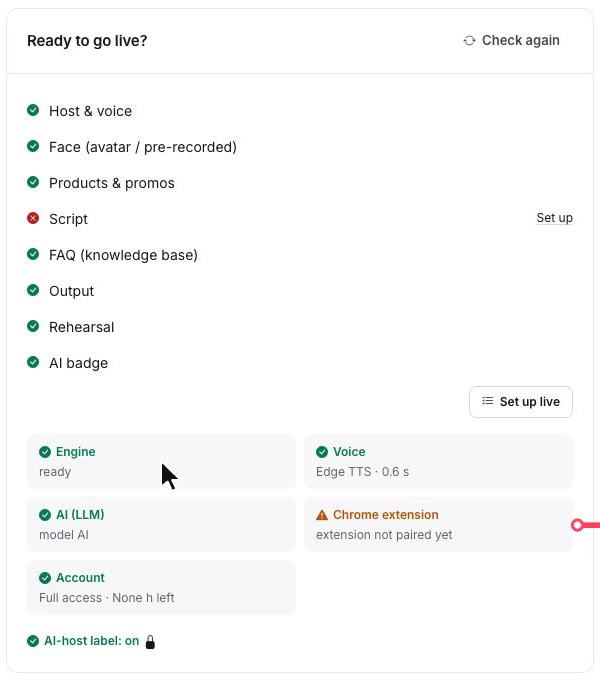
In the Live Console, the "System check" button on the health strip runs the same five checks. A yellow Chrome extension only means it is not paired yet — it is needed for Facebook and Instagram comments only.
Those five are setup checks (engine, voice, AI key, extension, account) — not a speed test. A rehearsal is what proves your computer's speed.
6. Fixing ⚠ and ✗
| What you see | What to do | |
|---|---|---|
| Intel Mac | Not recommended. Use an Apple silicon Mac (M1 or newer) or a Windows PC with a GPU. | |
| macOS older than 13 | System Settings → General → Software Update. macOS 15 or newer is faster. | |
| Windows 10 | Upgrade to Windows 11 (Settings → Windows Update) if the PC qualifies. Windows 10 has not been tested. | |
| No GPU in use by the browser | Turn on the browser's graphics acceleration (Chrome: Settings → System), restart the browser, check again. Update the graphics driver from the NVIDIA, AMD or Intel site. | |
| Built-in graphics (Intel UHD/Iris, Radeon Graphics) | Choose Standard. Close other apps while live, and plug in the laptop charger — many laptops slow the GPU down on battery. | |
| 8 GB of RAM | Standard only, one host. Close Chrome and other apps while live. | |
| Under 8 GB of RAM | Not enough for a live. Use another computer. | |
| Upload under 6 Mbps or high ping | Use a LAN cable or sit near the router, pause cloud backup/sync while live, and stream to one platform only. | |
| Disk space | Free at least 6 GB (15 GB for HD and on-device voices), on an SSD. | |
| App: "This PC cannot lipsync every frame" | Close other apps and tabs, plug in the charger, choose Standard on the Hosts page, then rehearse again. | |
| App: "This computer is short of memory…" | Close apps and browser tabs you do not need, or restart the computer before the live. | |
| App: yellow Chrome extension | Only needed for Facebook and Instagram comments. Install and pair the extension from the Downloads page. |
7. Sending it to support
Send us this on WhatsApp — we can give a more exact answer:
- The result from /semak (the Copy result button).
- A screenshot of About This Mac (Mac), or Settings → System → About and Task Manager → Performance → GPU (Windows).
- If the app is installed: a screenshot of the "Ready to go live?" card and anything that appeared during the rehearsal.
8. System requirements
Measured on real machines. In short: Apple silicon Mac with 16 GB = Standard and HD; 8 GB = Standard; Intel Macs not recommended. Windows 11 with an RTX 20-series/RX 6000 or newer = Standard (HD in testing); built-in Intel graphics = Standard with limits.
Mac
| Minimum (Standard) | Recommended (Standard & HD) | |
|---|---|---|
| Chip | Apple silicon M1 or newer | M2/M3/M4 or newer |
| RAM | 8 GB (Standard only, one host) | 16 GB or more |
| macOS | 13 Ventura | 15 or newer (faster) |
| Intel Mac | Not recommended (not tested) | — |
Windows
| Minimum (Standard) | Recommended (Standard & HD) | |
|---|---|---|
| Windows | Windows 11, 64-bit | Windows 11, 64-bit |
| GPU | DirectX 12 GPU; Intel UHD/Iris = Standard with limits | NVIDIA RTX 20-series or newer / AMD RX 6000 or newer |
| RAM | 8 GB (Standard only) | 16 GB or more |
| HD | — | In testing on Windows |
Both
| Minimum (Standard) | Recommended (Standard & HD) | |
|---|---|---|
| Disk | 6 GB free, SSD | 15 GB free, SSD |
| Upload | 6 Mbps (1 platform) | 10 Mbps (2 platforms at once) |